
Admin Panel
FileCodeBox provides a fully-featured admin panel that allows administrators to conveniently manage files, view system status, and modify configurations. This document introduces the various features and usage of the admin panel.
Accessing the Admin Panel
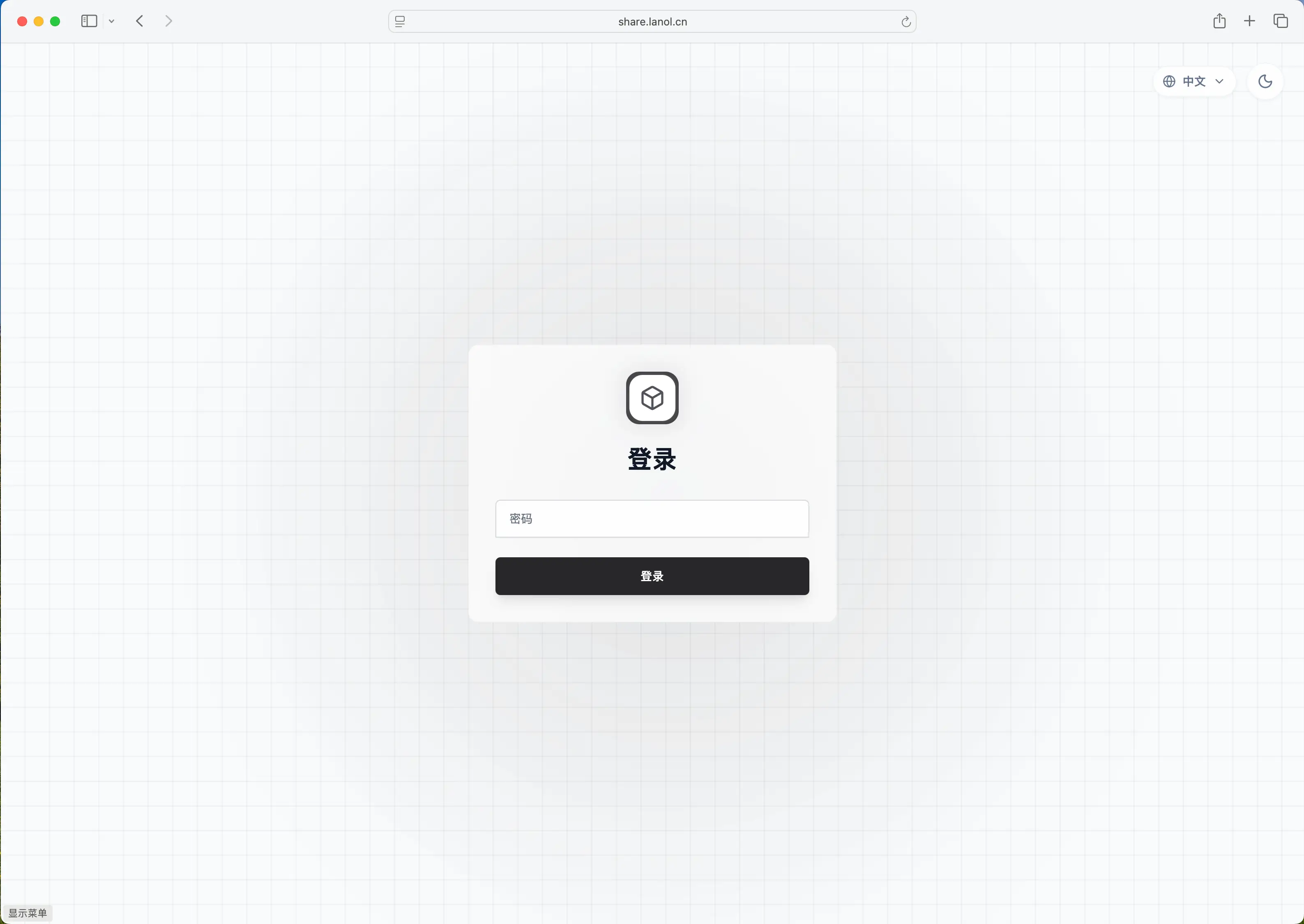
Login Method
The admin panel is located at the /admin path. Access method:
- On first run, set the admin password on the setup page
- Visit
http://your-domain.com/adminin your browser - Enter the admin password (the value of the
admin_tokenconfiguration) - Click the login button
Tip
The setup page is shown automatically while the system is uninitialized. Complete setup before exposing a production service to the public internet.
Show Admin Entry
By default, the admin panel entry is not shown on the homepage. You can control whether to show it via configuration:
| Setting | Type | Default | Description |
|---|---|---|---|
showAdminAddr | int | 0 | Show admin entry on homepage (1=show, 0=hide) |
Security Recommendation
For public services, it's recommended to keep showAdminAddr at 0 and access the admin panel directly via the /admin path to reduce the risk of malicious scanning.
Authentication Mechanism
The admin panel uses JWT (JSON Web Token) for authentication:
- After successful login, the server returns a Token containing admin identity
- Subsequent requests carry the Token via
Authorization: Bearer <token>header - Token is used to verify admin identity, ensuring only authorized users can access admin functions
Dashboard
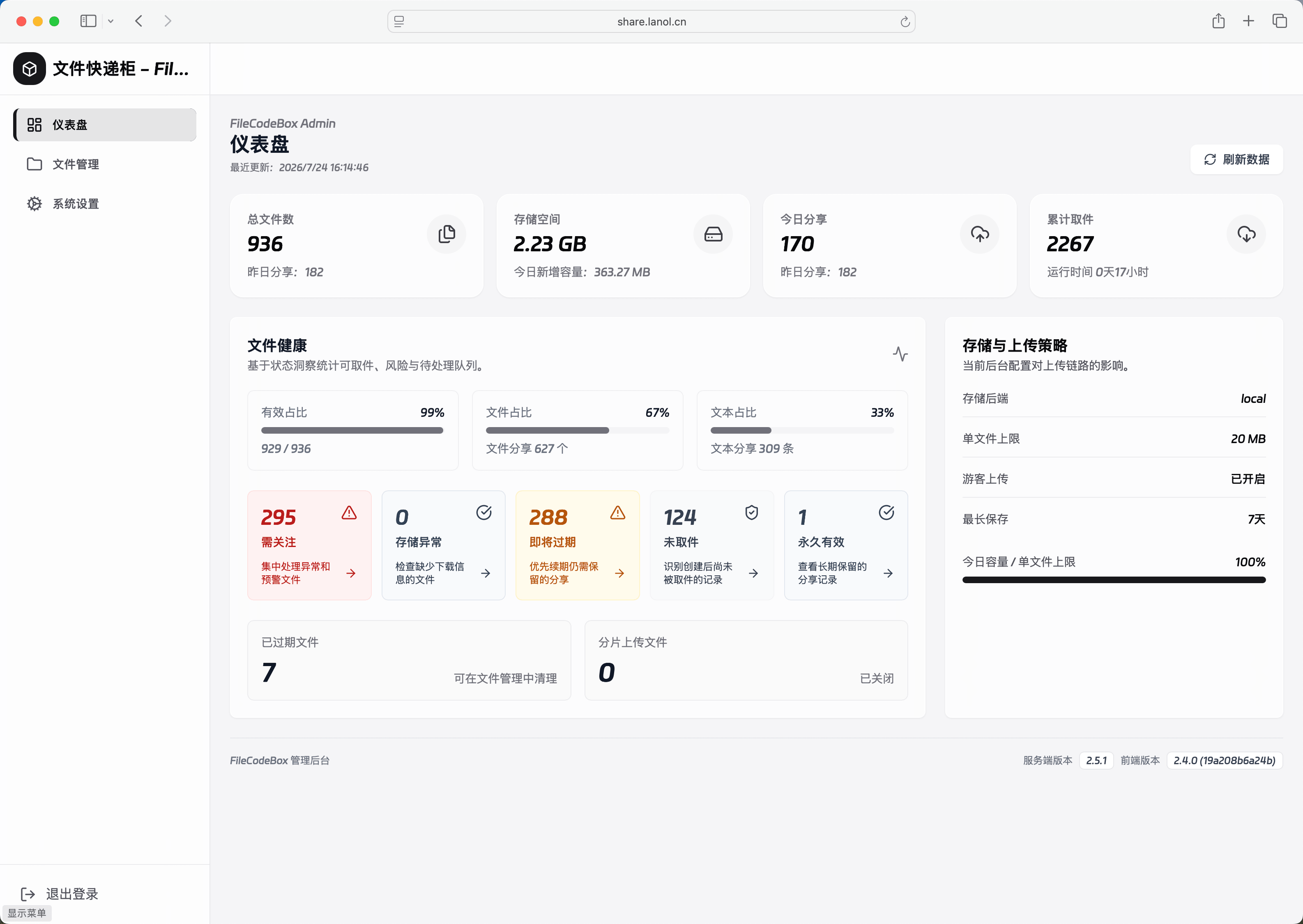
After logging in, you first see the dashboard page, which displays the overall system status.
Statistics
The dashboard displays the following key metrics:
| Metric | Description |
|---|---|
Total Files (totalFiles) | Total number of files stored in the system |
Storage Used (storageUsed) | Total storage space occupied by all files (bytes) |
System Uptime (sysUptime) | Time when the system was first started |
Yesterday's Uploads (yesterdayCount) | Number of files uploaded yesterday |
Yesterday's Upload Size (yesterdaySize) | Total size of files uploaded yesterday (bytes) |
Today's Uploads (todayCount) | Number of files uploaded today so far |
Today's Upload Size (todaySize) | Total size of files uploaded today (bytes) |
Metric Notes
- Total Files: Includes all unexpired files and text shares
- Storage Used: Shows actual storage space occupied by files, excluding database and other system files
- Yesterday/Today Statistics: Calculated based on file creation time, useful for understanding system usage trends
Tip
Storage usage is displayed in bytes. For example, 10485760 represents approximately 10MB.
File Management
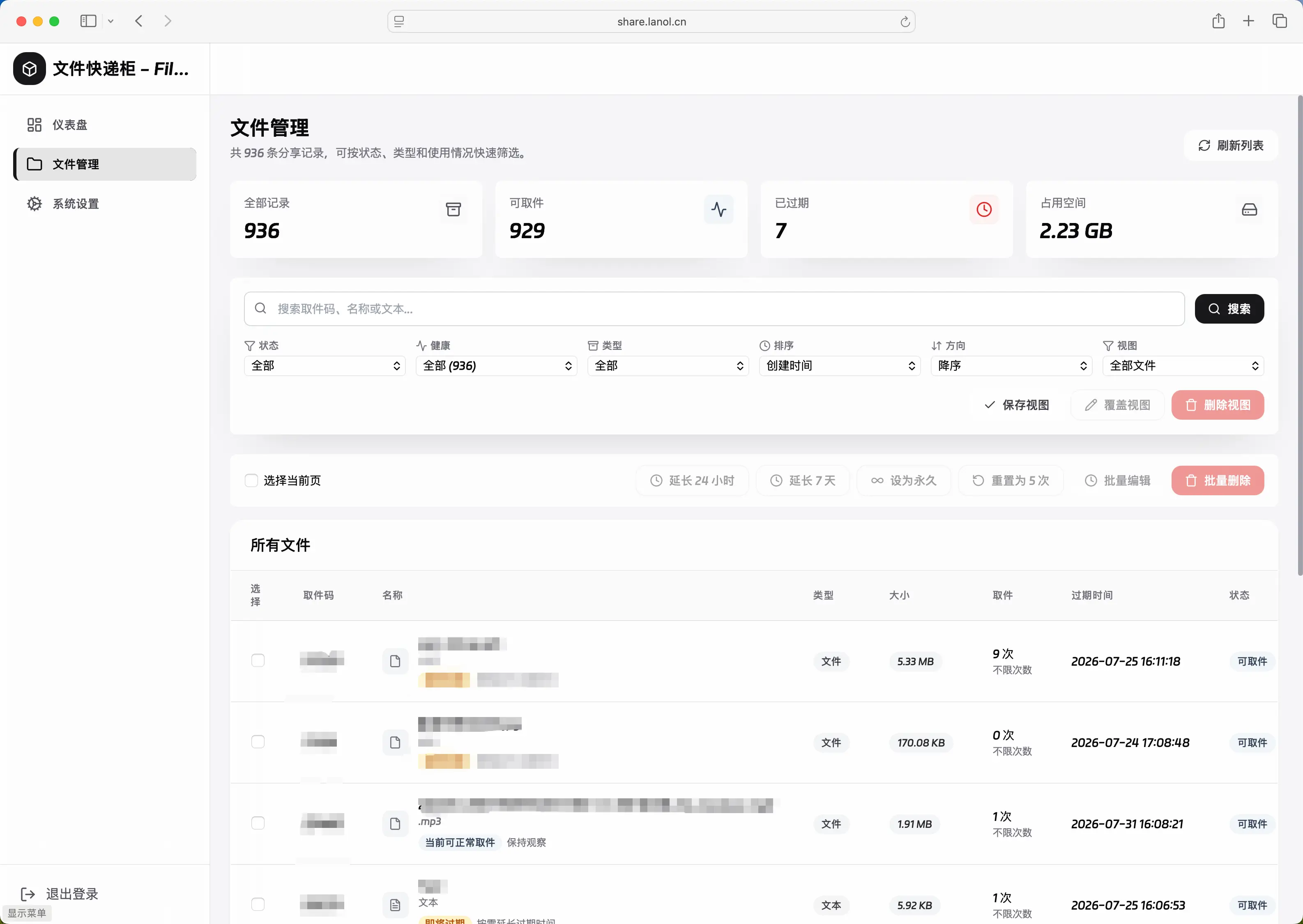
File List
The file management page displays all shared files in the system, supporting pagination and search.
List information includes:
- File ID
- Extraction code (code)
- Filename prefix (prefix)
- File extension (suffix)
- File size
- Creation time
- Expiration time
- Remaining download count
Search Files
Use the search function to quickly find specific files:
- Enter keywords in the search box
- System performs fuzzy matching based on filename prefix (prefix)
- Search results update in real-time
Search examples:
- Enter
reportto find all files with "report" in the filename - Enter
.pdfto find all PDF files (if the filename contains this string)
Pagination
The file list supports paginated display:
| Parameter | Default | Description |
|---|---|---|
page | 1 | Current page number |
size | 10 | Items per page |
Delete Files
Administrators can delete any file:
- Find the file to delete in the file list
- Click the delete button
- Confirm the delete operation
Warning
Delete operations are irreversible! Files will be permanently deleted from the storage backend, and database records will also be removed.
Delete process:
- System first deletes the actual file from the storage backend (local/S3/OneDrive, etc.)
- Then deletes the file record from the database
- After deletion, the corresponding extraction code becomes invalid
Download Files
Administrators can directly download any file:
- Find the target file in the file list
- Click the download button
- File will be downloaded via browser
For text shares, the system returns text content directly instead of downloading a file.
Modify File Information
Administrators can modify some information of shared files:
| Modifiable Field | Description |
|---|---|
code | Extraction code (must be unique, cannot duplicate other files) |
prefix | Filename prefix |
suffix | File extension |
expired_at | Expiration time |
expired_count | Remaining download count |
Modify extraction code:
Original code: abc123
New code: myfile2024
Note
When modifying extraction codes, the system checks if the new code is already in use. If an identical extraction code exists, the modification will fail.
Local File Management
In addition to managing shared files, the admin panel also provides local file management functionality for managing files in the data/local directory.
View Local Files
The local file list displays all files in the data/local directory:
| Information | Description |
|---|---|
| Filename | Complete filename |
| Creation Time | File creation time |
| File Size | File size (bytes) |
Share Local Files
You can quickly share local files:
- Select the file to share in the local file list
- Set expiration method and value
- Click the share button
- System generates extraction code
Share parameters:
| Parameter | Description |
|---|---|
filename | Filename to share |
expire_style | Expiration method (day/hour/minute/forever/count) |
expire_value | Expiration value (days/hours/minutes/download count) |
Delete Local Files
You can delete files in the data/local directory:
- Find the file to delete in the local file list
- Click the delete button
- Confirm deletion
Use Cases
Local file management is useful for:
- Sharing files after batch uploading to the server
- Managing files uploaded to the server through other means
- Cleaning up unnecessary local files
System Settings
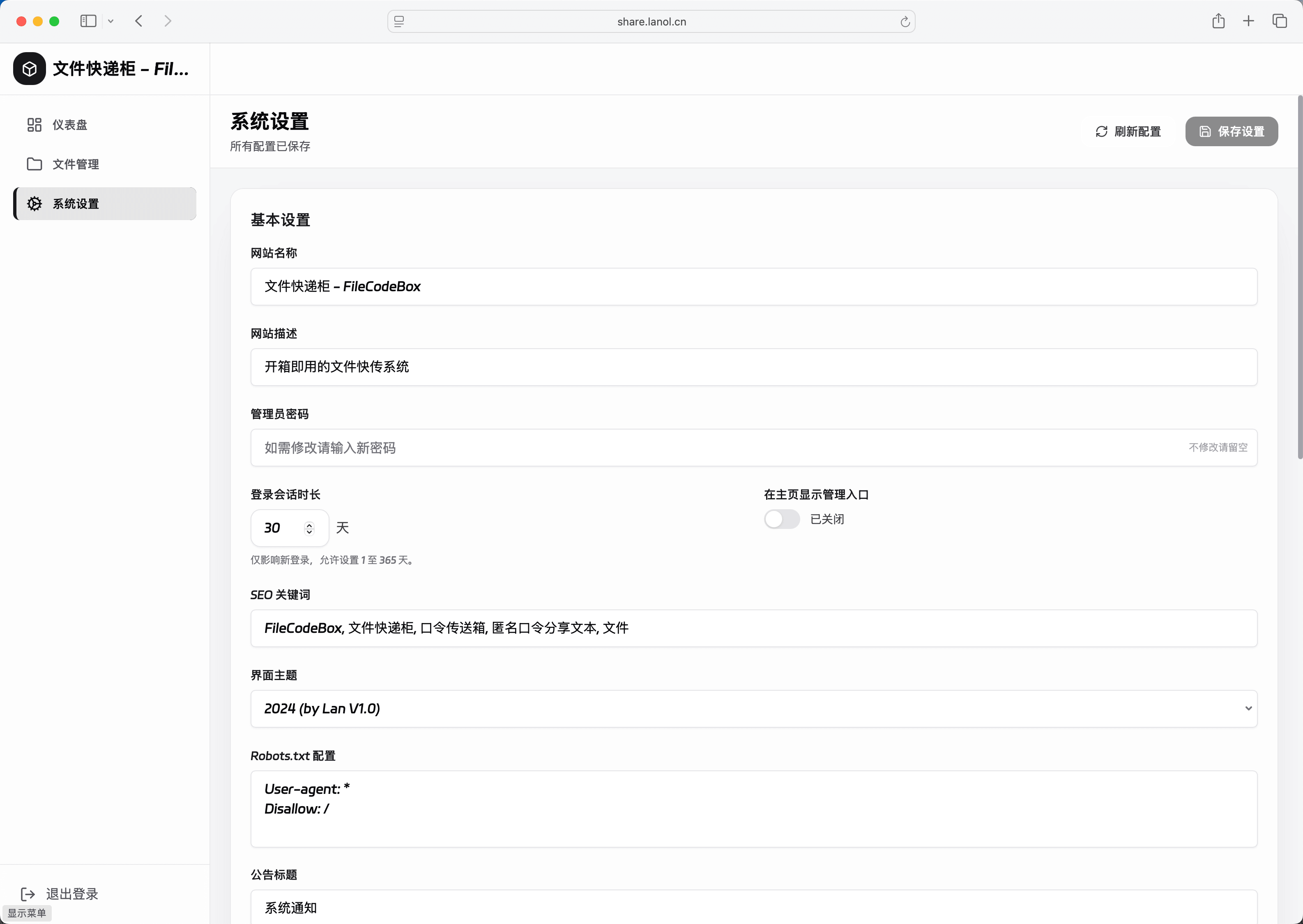
View Configuration
On the system settings page, you can view the current values of all configuration items. Configuration items are grouped by category:
- Basic settings (site name, description, etc.)
- Upload settings (file size limits, rate limits, etc.)
- Storage settings (storage type, path, etc.)
- Theme settings (theme selection, opacity, etc.)
- Security settings (admin password, error limits, etc.)
Modify Configuration
Administrators can modify most configurations through the admin panel:
- Go to the system settings page
- Find the configuration item to modify
- Enter the new value
- Click the save button
Modifiable configuration items:
| Category | Example Settings |
|---|---|
| Basic Settings | name, description, keywords, notify_title, notify_content |
| Upload Settings | uploadSize, uploadMinute, uploadCount, openUpload, enableChunk |
| Expiration Settings | expireStyle, max_save_seconds |
| Theme Settings | themesSelect, opacity, background |
| Security Settings | admin_token, showAdminAddr, errorMinute, errorCount |
| Storage Settings | file_storage, storage_path and storage backend-specific configurations |
Note
admin_token(admin password) cannot be set to emptythemesChoices(theme list) cannot be modified through the admin panel- After modifying storage settings, existing files will not be automatically migrated
Configuration Effect
Configuration changes take effect immediately without restarting the service. Configurations are saved in the database and persist after restart.
Configuration storage location:
- Database:
data/filecodebox.db - Table name:
keyvalue - Key name:
settings
API Endpoints
All admin panel functions are implemented through REST APIs. Here are the main endpoints:
Authentication Endpoint
Login
POST /admin/login
Content-Type: application/json

{
    "password": "your-admin-password"
}
Response:
{
    "code": 200,
    "detail": {
        "token": "eyJhbGciOiJIUzI1NiIs...",
        "token_type": "Bearer"
    }
}
Dashboard Endpoint
Get Statistics
GET /admin/dashboard
Authorization: Bearer <token>
File Management Endpoints
Get File List
GET /admin/file/list?page=1&size=10&keyword=
Authorization: Bearer <token>
Delete File
DELETE /admin/file/delete
Authorization: Bearer <token>
Content-Type: application/json

{
    "id": 123
}
Download File
GET /admin/file/download?id=123
Authorization: Bearer <token>
Modify File Information
PATCH /admin/file/update
Authorization: Bearer <token>
Content-Type: application/json

{
    "id": 123,
    "code": "newcode",
    "expired_at": "2024-12-31T23:59:59"
}
Local File Endpoints
Get Local File List
GET /admin/local/lists
Authorization: Bearer <token>
Delete Local File
DELETE /admin/local/delete
Authorization: Bearer <token>
Content-Type: application/json

{
    "filename": "example.txt"
}
Share Local File
POST /admin/local/share
Authorization: Bearer <token>
Content-Type: application/json

{
    "filename": "example.txt",
    "expire_style": "day",
    "expire_value": 7
}
Configuration Endpoints
Get Configuration
GET /admin/config/get
Authorization: Bearer <token>
Update Configuration
PATCH /admin/config/update
Authorization: Bearer <token>
Content-Type: application/json

{
    "admin_token": "new-password",
    "uploadSize": 52428800
}
Common Issues
Forgot Admin Password
If you forgot the admin password, you can reset it through the following methods:
- Stop the FileCodeBox service
- Open
data/filecodebox.dbusing an SQLite tool - Query the record with
key='settings'in thekeyvaluetable - Modify the
admin_tokenvalue in the JSON - Restart the service
-- View current configuration
SELECT * FROM keyvalue WHERE key = 'settings';

-- Or delete configuration to restore default password
DELETE FROM keyvalue WHERE key = 'settings';
File Deletion Failed
If an error occurs when deleting files, possible reasons:
- Storage backend connection failed: Check if storage configuration is correct
- File no longer exists: File may have been manually deleted
- Insufficient permissions: Check write permissions for storage directory
Configuration Changes Not Taking Effect
If configuration changes don't take effect:
- Check if you clicked the save button
- Refresh the page to see if configuration was saved
- Check browser console for error messages
- Confirm configuration value format is correct (e.g., don't enter strings for numeric types)
Next Steps
- Configuration Guide - Learn detailed descriptions of all configuration options
- Security Settings - Learn how to enhance system security
- Storage Configuration - Configure different storage backends